Read, fill, sign and organise PDFs on your device.
Open a PDF, find what you need, fill a form, add marks or a visible signature, change pages, reduce file size or make a new PDF. ExplorePDF saves the result as a new copy and leaves your original unchanged.
Version 1.3 is available for Mac, iPhone, iPad, Android and Windows. Check the download page for your platform. Your documents are processed on your device and are not uploaded to a document-processing server.
Free. No account, no sign in, no subscription.
What it does
Read, organize and make PDFs on Mac, iPhone, iPad, Android and Windows. All five editions cover text recognition, marks, forms and visible signatures. Apple devices and Android also offer lossless file size reduction.
Read and find
Read a PDF, search its text and move through pages and bookmarks on your device.
Mark Up, Fill Form and Sign
On Mac, iPhone, iPad, Android and Windows, add marks, fill ordinary form fields and place a visible picture of your signature.
Recognize Text
Make scanned pages searchable on Mac, iPhone, iPad, Android and Windows. Android recognizes English text on the device.
Pages
Reorder, rotate, duplicate or remove pages, then save the result as a new PDF.
Reduce File Size
On Apple devices and Android, measure a smaller lossless copy before saving. Your original stays unchanged.
Print as a Booklet
Arrange pages so a double sided stack folds into a readable booklet, with sections for longer documents.
Several Pages per Sheet
Put two or four pages on each sheet, with page order, margin and gutter controls.
Make Pages the Same Size
Give mixed A4, Letter and Legal pages one consistent paper size.
Split and save selected pages
Divide a document by page, group size or ranges, or save only the pages you select.
Combine PDFs
Put several PDFs into one new file in the order you choose.
Turn Images into a PDF
Make one PDF from images you select. On iPhone, iPad and Android, scan paper with the camera.
Do the Same to Many Files
Apply one print-layout job to a queue of PDFs on a Mac.
See Help for every task, including platform differences.
Preview print layouts before you save
The center pane is the result, not the source document. Change the layout and inspect every output sheet before you save it.
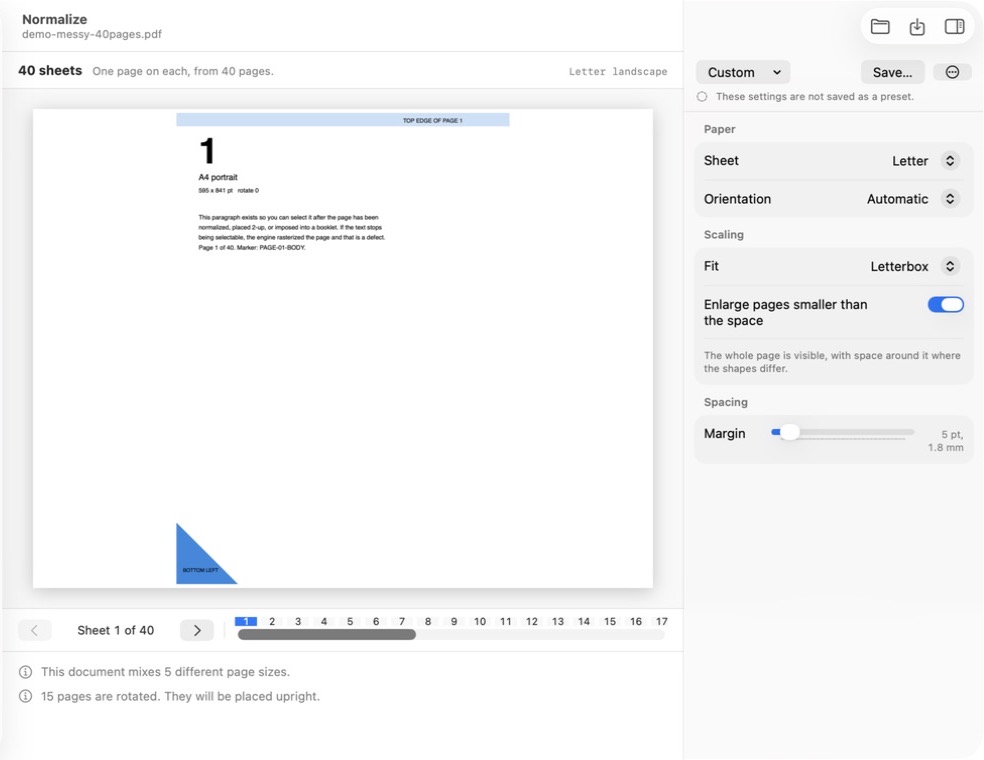
Make Pages the Same Size
Mixed page sizes placed upright on one consistent sheet size.
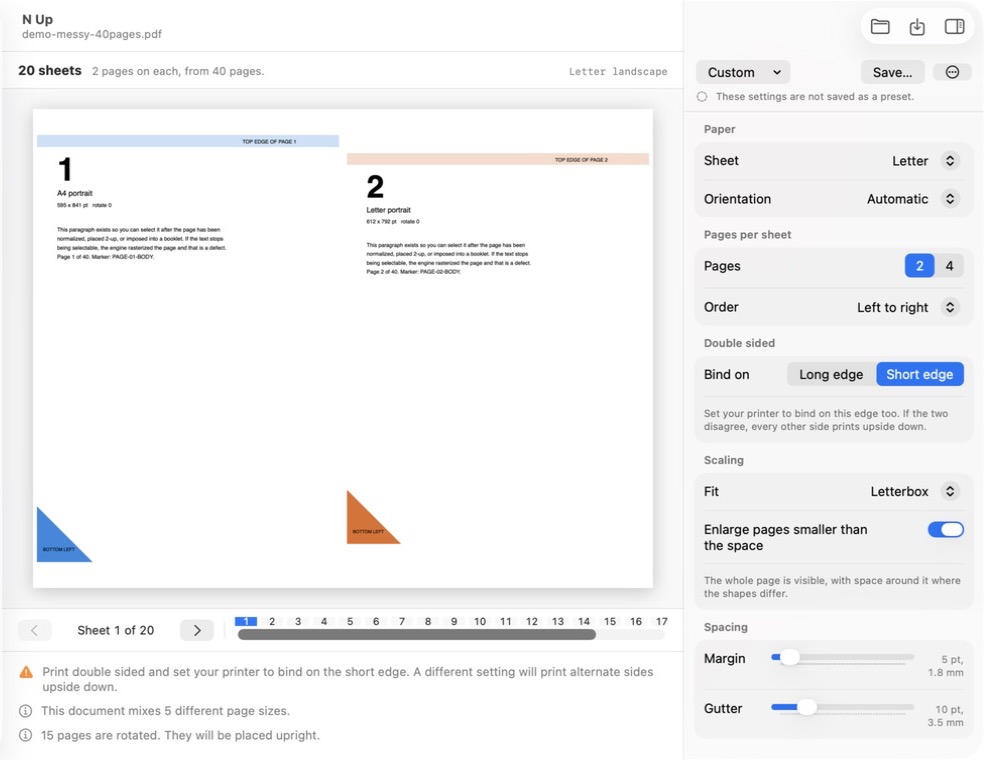
Several Pages per Sheet
Two pages placed side by side, with page order, binding, margin and gutter controls.
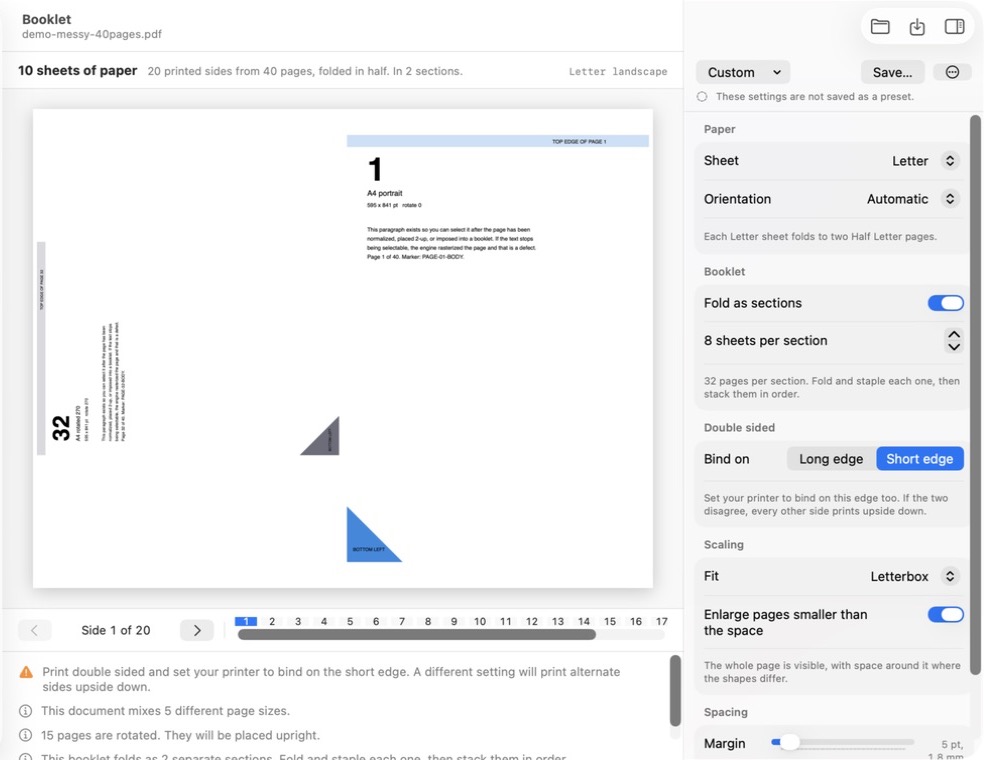
Booklet
Pages reordered for folding, with sections and printer binding shown before export.
Why booklets come out upside down, and what we did about it
Fold a stack of double sided sheets and the back of every sheet has to be rotated a half turn, or every other page reads upside down. Whether it needs that half turn depends on which edge your printer binds on, and on whether the sheet is portrait or landscape.
Almost every free tool gets this wrong in at least one combination, which is why "booklet printing upside down" is a question people keep asking.
ExplorePDF's booklet layout is checked against a model of a real folded sheet, on both binding edges and on both portrait and landscape sheets, with the page ordering verified at every count from 1 to 64. It also tells you which printer setting the output was made for, because the compensation is only correct if the paper is turned the way the app assumed.
Things it will not do quietly
- It never silently replaces a file. Outputs the app names for you, in split, many-file tasks and Shortcuts, are numbered rather than written over, so if
report.pdfis taken you getreport 2.pdf, and many-file runs write into their own dated folder. When you type a name into the save panel yourself, macOS asks before it replaces anything. - It warns before page content becomes uneditable.Making a new print layout rebuilds each page. The app explains which interactive features the new copy cannot keep before it writes the file.
- Merge and split keep them. Those two copy pages rather than redrawing them, so form fields and links survive intact.
- It tells you when it cannot help. Where a control is disabled, the app says why rather than leaving you to guess.
Your documents are processed on your device
The PDFs people actually need to fix are contracts, tax returns, medical records and homework. Uploading them to a stranger's server to rotate a page is a bad trade, so ExplorePDF does not offer it.
There is no account, in-app analytics or advertising identifier. The Apple listing is marked Data Not Collected, and the Android app has no internet permission. The Windows document workflows operate on files on the device. Store delivery, updates and any operating-system diagnostics remain under the relevant platform settings.
No upload
Files are read and written on your own disk.
No account
Nothing to sign in to, nothing to delete.
No telemetry
No in-app analytics or advertising.
This website is a separate thing and it is measured like any website. The privacy policy keeps the two apart.
Choose your platform
The store pages show what is available on each device. A few differences matter when you choose an edition.
- Mac, iPhone, iPad, Android and Windows are at version 1.3 with forms, marks, visible signatures and text recognition.
- Android recognizes English text on your device and can scan paper with its camera.
- Reduce File Size is documented for Mac, iPhone, iPad and Android. Windows supports x64 and ARM64 devices.
- Sign places a picture of your signature. It does not create a certificate-backed digital signature.
- Do the Same to Many Files is a Mac feature.
Get ExplorePDF
Free for Mac, iPhone and iPad on the App Store, Android on Google Play, and Windows on the Microsoft Store. No account, no subscription, no document upload.